
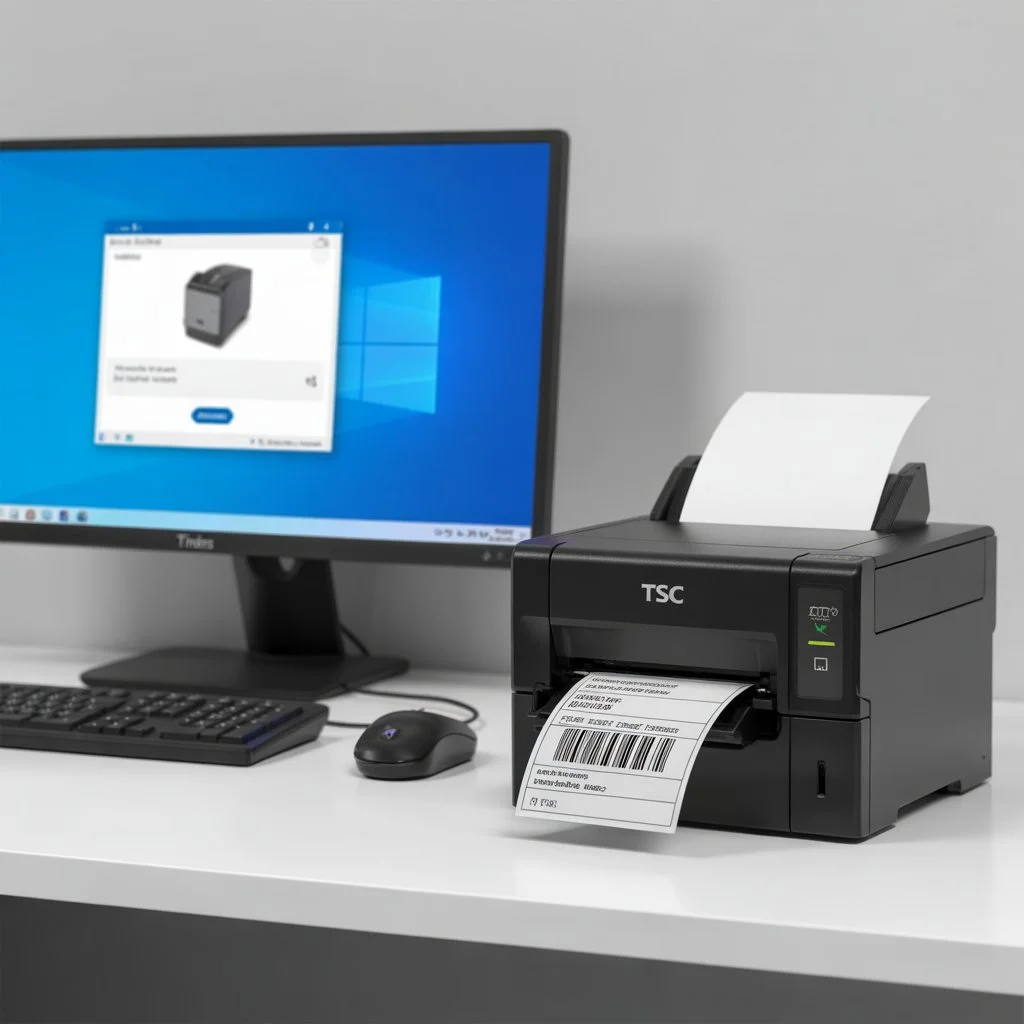
If your TSC barcode printer is not printing labels correctly, shows as offline, or is not detected by your system, the most common reason is a missing or incorrect printer driver. Installing the correct driver ensures smooth communication between your computer and the printer.
This guide explains how to download and install TSC printer drivers for all major models, step by step.
What Is a TSC Printer Driver?
A TSC printer driver is a software program that allows your computer to communicate with a TSC barcode or label printer. Without the correct driver, the printer may not print, may produce blank labels, or may show connection errors.
In simple terms, the driver tells the printer how to print labels correctly.
Why You Must Install the Correct TSC Printer Driver
Using the correct TSC printer driver helps you:
- Print barcodes accurately
- Avoid blank or misaligned labels
- Prevent printer offline or port errors
- Ensure compatibility with label design software
- Improve overall printer performance
Installing the wrong driver can cause frequent errors and wasted labels.
How to Identify Your TSC Printer Model Before Downloading the Driver
Before downloading any driver, confirm your exact TSC printer model.
You can find the model number by:
- Checking the sticker at the back or bottom of the printer
- Looking at the printer box or invoice
- Viewing the printer name in Windows “Devices & Printers”
Common TSC printer models include:
- TSC TE200
- TSC TDP 225
- TSC label printers
- TSC barcode printers
Knowing the correct model ensures you download the right driver.
Where to Download Official TSC Printer Drivers
The safest way to download a TSC printer driver is from official or trusted sources.
You can download drivers from:
- The official TSC website
- Authorized TSC printer service providers
- Trusted IT support companies like SMB Infotech
Always avoid unknown third-party websites, as they may contain outdated or unsafe files.
How to Download TSC Printer Driver (Step-by-Step)
Follow these steps to download the TSC printer driver:
- Open the official TSC support or driver download page
- Select your printer model
- Choose your operating system (Windows 10 or Windows 11)
- Download the latest available driver file
- Save the file on your computer
Once downloaded, you are ready to install the driver.
How to Install TSC Printer Driver on Windows 10 & 11
Installing a TSC printer driver is simple if done correctly.
Step 1: Extract the Driver File
If the driver file is in ZIP format, extract it first.
Step 2: Run the Installer
Double-click the setup file and follow the on-screen instructions.
Step 3: Connect the Printer
Connect your TSC printer using a USB or LAN cable when prompted.
Step 4: Complete Installation
Finish the installation and restart your computer if required.
Step 5: Print a Test Label
After installation, print a test label to confirm the driver is working.
If you are setting up a new device, follow our complete guide on how to install a TSC barcode printer step by step to avoid common setup issues.
Popular TSC Printer Drivers Covered in This Guide
This guide applies to most commonly used drivers, including:
- TSC TE200 barcode printer
- TSC TDP 225 printer
- TSC barcode printer
- TSC label printer
The installation process is almost the same for all TSC models.
Common TSC Printer Driver Issues & Fixes
Printer Not Detected After Driver Installation
- Check USB or LAN connection
- Try changing the printer port
- Restart the printer and system
Blank Labels Printing
- Verify label size settings
- Reinstall the correct driver
- Check printer calibration
Driver Installation Failed
- Run installer as administrator
- Disable antivirus temporarily
- Download the latest driver version
How to Update or Reinstall a TSC Driver
If your printer stops working after a system update:
- Uninstall the existing TSC driver
- Restart your computer
- Download the latest driver version
- Install the driver again
SMB Infotech provides sales, setup, and technical support for every TSC printer, including driver installation and troubleshooting.
Final Thoughts
Installing the correct TSC printer driver is essential for smooth and error-free barcode printing. Always download drivers from trusted sources and match them with your printer model and operating system.
If you need professional help with TSC printer installation, troubleshooting, or setup, SMB Infotech can assist you with complete barcode printer support.
FAQs – TSC Printer
Q1. How do I download a TSC driver?
Ans – You can download a TSC driver from the official website by selecting your printer model and operating system.
Q2. Which driver is best for TSC barcode printers?
Ans – The best driver is the latest official driver designed specifically for your TSC printer model.
Q3. Why is my TSC printer not printing after driver installation?
Ans – This usually happens due to an incorrect driver, wrong port selection, or label size mismatch.
Q4. Can I install a TSC printer driver on Windows 11?
Ans – Yes, most TSC printer drivers support both Windows 10 and Windows 11.
Q5. Do I need to reinstall the driver if I change my computer?
Ans – Yes, the driver must be installed separately on each computer connected to the printer.


)