
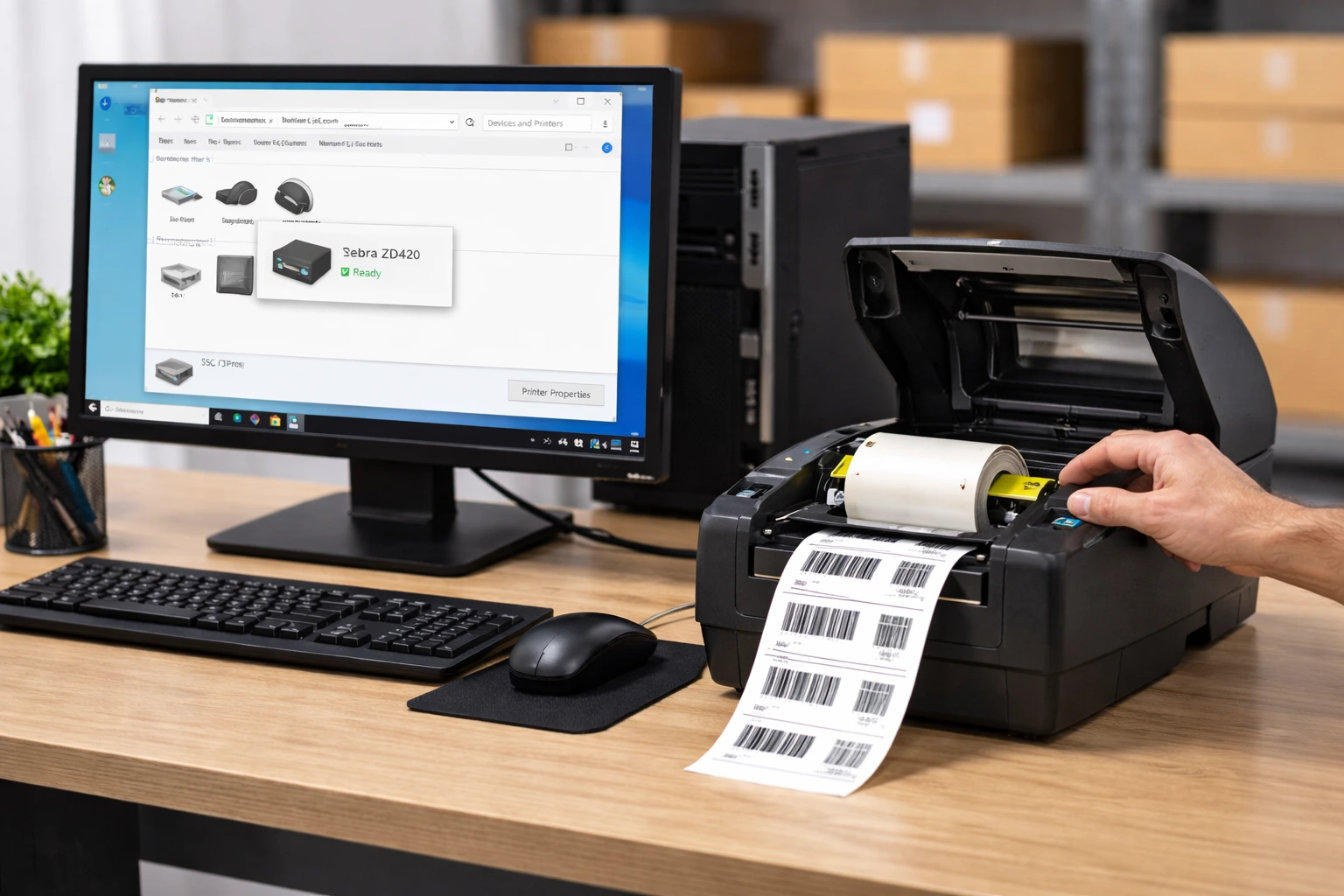
How to Set Up a Zebra Printer
Setting up a Zebra printer correctly is essential for smooth barcode and label printing. A proper setup ensures accurate barcode alignment, clear print quality, and fewer printing errors.
This beginner-friendly guide explains how to set up a Zebra printer step by step, from connecting the printer to printing your first label.
If you are new to barcode printing, it helps to first understand what is a Zebra printer and how it is used in business environments.
What You Need Before Setting Up a Zebra Printer
Before starting the setup, make sure you have:
- Zebra printer
- Power cable and USB or LAN cable
- Correct label roll and ribbon (if required)
- Windows computer
- Installed printer driver
Step-by-Step Guide to Set Up a Zebra Printer
Step 1: Place and Power the Printer
Place the Zebra printer on a stable surface, connect the power cable, and switch on the printer.
Step 2: Connect the Zebra Printer to Your Computer
Connect the printer to your system using a USB or LAN cable. Ensure the cable is securely connected.
Step 3: Install the Zebra Printer Driver
Install the correct driver for your Zebra printer model so that your system can detect the printer properly.
Step 4: Load Labels and Ribbon
Open the printer cover and load the label roll correctly. If your model uses thermal transfer printing, install the ribbon properly.
Step 5: Calibrate the Zebra Printer
Calibrating the printer helps it detect label size correctly and prevents misalignment or skipping labels.
Step 6: Configure Printer Settings
Set the correct label size, print speed, and print darkness from printer preferences.
Step 7: Print a Test Label
Print a test label to confirm that the Zebra printer works correctly.
Common Zebra Printer Setup Problems & Fixes
Printer Not Detected
- Check USB or LAN connection
- Restart the printer and computer
Labels Printing Incorrectly
- Recalibrate the printer
- Verify label size settings
Printer Printing Blank Labels
- Check ribbon installation
- Increase print darkness
How to Confirm Zebra Printer Setup Is Successful
If the printer prints a clear and correctly aligned test label, the Zebra printer setup is complete.
FAQs – Setting Up a Zebra Printer
Q1. How do I set up a Zebra printer?
Ans – Connect the printer, install the driver, load labels, calibrate the printer, and print a test label.
Q2. Do I need software to set up a Zebra printer?
Ans – Yes, basic label or printer software is required to send print commands to the printer.
Q3. Why is my Zebra printer not printing after setup?
Ans – This can happen due to incorrect driver installation, wrong label loading, or calibration issues.
Q4. Can I set up a Zebra printer on Windows 11?
Ans – Yes, Zebra printers support Windows 10 and Windows 11.
Q5. How do I know if my Zebra printer is set up correctly?
Ans – Printing a clear test label confirms that the printer is set up correctly.
Conclusion
Setting up a Zebra printer correctly ensures smooth and reliable barcode printing. Following the proper setup steps reduces errors and improves daily printing operations.
SMB Infotech offers professional setup, installation, and support services for Zebra printers in UAE and helps businesses get started quickly.

No comment