
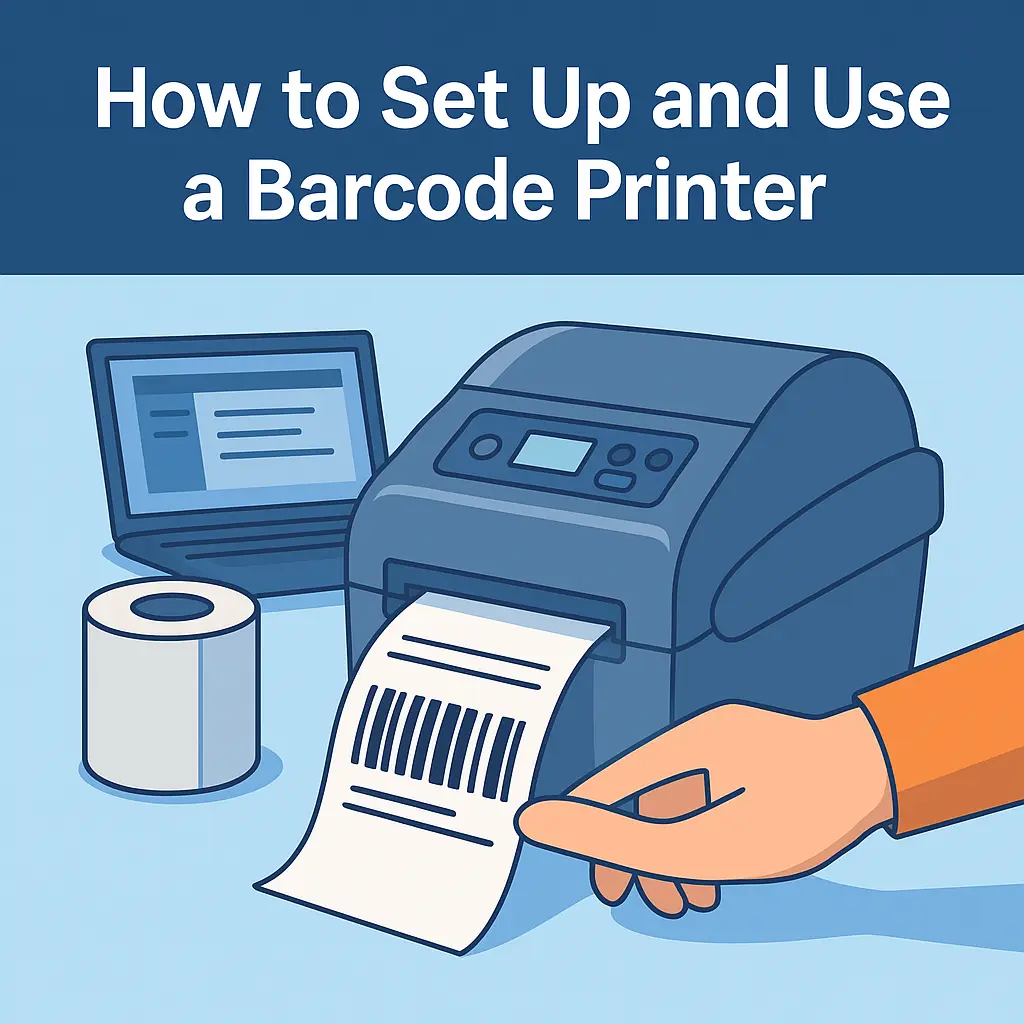
How Does a Barcode Printer Work?
A barcode printer prints machine-readable barcodes on labels using direct thermal or thermal transfer technology.
- Direct thermal printers print directly on heat-sensitive labels
- Thermal transfer printers use a ribbon to transfer ink onto labels
Once the printer receives data from a computer or POS system, it converts that data into barcode symbols and prints them based on the configured label size and resolution.
Understanding this process helps avoid printing errors during setup.
How to Set Up a Barcode Printer (Initial Setup)
Follow these steps to correctly set up a barcode printer for the first time:
- Unbox the printer and place it on a flat surface
- Load the label roll according to the printer’s guide
- Insert ribbon (for thermal transfer models)
- Connect the printer using USB, Ethernet, or Wi-Fi
- Power on the printer and allow it to initialize
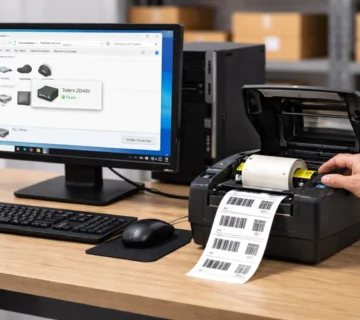
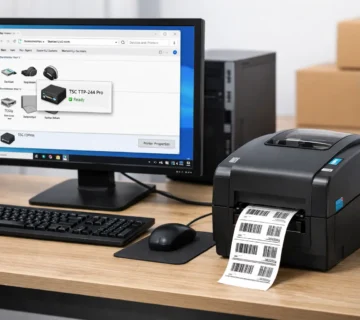
After the physical setup is complete, install the printer driver on your system. For step-by-step instructions on installing specific brands such as Zebra, Honeywell, TSC, refer to our detailed barcode printer installation guide
Installing Barcode Printer Drivers
Installing the correct driver is critical for proper operation.
- Download the official driver from the manufacturer’s website
- Install it on your Windows or macOS system
- Select the correct printer model during installation
- Set the printer as default (if required)
Once installed, the system will recognize the printer for label printing.
How to Calibrate a Barcode Printer
Calibration ensures the printer detects the correct label size and gap.
Basic calibration steps:
- Turn off the printer
- Press and hold the feed button
- Turn the printer back on while holding the button
- Release the button when the printer starts feeding labels
The printer will automatically detect label height, gap, and alignment.
Proper calibration prevents:
- Skipped labels
- Misaligned prints
- Partial barcodes
Barcode Printer Printing Settings Explained
Correct printing settings improve barcode readability and scanning accuracy.
Important settings to check:
- Print speed: Slower speeds produce sharper barcodes
- Darkness level: Adjust based on label and ribbon type
- Label size: Match width and height exactly
- Print resolution: Use higher DPI for small barcodes
Always test print a label after adjusting settings.
How to Print Barcode Labels
To print barcode labels correctly:
- Open your label design software
- Select the barcode printer
- Choose correct label dimensions
- Insert barcode data
- Print a test label
Ensure the barcode scans properly before bulk printing.
Common Barcode Printer Setup Mistakes to Avoid
- Using incorrect label size
- Skipping calibration
- Printing at high speed with low darkness
- Installing wrong printer driver
- Ignoring ribbon compatibility
Avoiding these mistakes saves time, labels, and printing costs.
Choosing the Right Barcode Printer for Business Use
Different businesses require different printer types based on volume, environment, and label usage. If you are planning to invest in a reliable barcode printer, working with an experienced supplier ensures correct product selection, setup, and long-term support.
SMB Infotech provides barcode printers suitable for retail, warehouse, logistics, and industrial applications along with technical assistance and support.
Final Thoughts
Knowing how to set up a barcode printer correctly improves printing efficiency, reduces errors, and ensures accurate barcode scanning. With proper installation, calibration, and settings, barcode printers can deliver consistent results for daily business operations.
FAQs – Frequently Asked Questions
Q1. How do I set up a barcode printer for the first time?
Ans – To set up a barcode printer for the first time, load the label roll and ribbon (if required), connect the printer to your computer or network, install the correct driver, and calibrate the printer to detect label size and gap accurately.
Q2. Why is barcode printer calibration important?
Ans – Barcode printer calibration ensures the printer correctly detects label height, gap, and alignment. Without calibration, labels may skip, print off-center, or produce unreadable barcodes.
Q3. What are the most common barcode printer setup mistakes?
Ans – Common mistakes include using the wrong label size, skipping calibration, installing incorrect drivers, setting high print speed with low darkness, and using incompatible ribbons or labels.
Q4. How do I adjust barcode printer printing settings for clear output?
Ans – For clear barcode printing, reduce print speed, increase darkness gradually, set the exact label dimensions, and use the correct DPI based on barcode size and scanning distance.
Q5. How do I print barcode labels correctly?
Ans – To print barcode labels correctly, select the barcode printer in your label software, set accurate label size, generate the barcode data, print a test label, and scan it to confirm readability before bulk printing.
Q6. How do I know which barcode printer is right for my business?
Ans – The right barcode printer depends on print volume, environment, label size, and usage type. Retail stores typically use desktop printers, while warehouses and factories require industrial barcode printers.
Q7. Can barcode printers be used with POS and inventory systems?
Ans – Yes, barcode printers can be integrated with POS systems, ERP software, and inventory management platforms to automate labeling, tracking, and stock control.
)
No comment