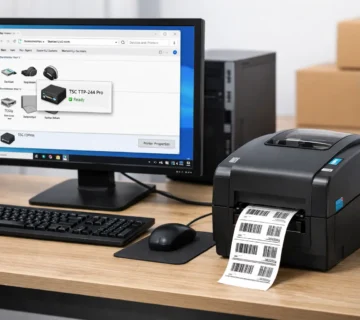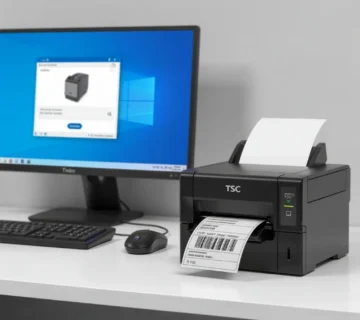
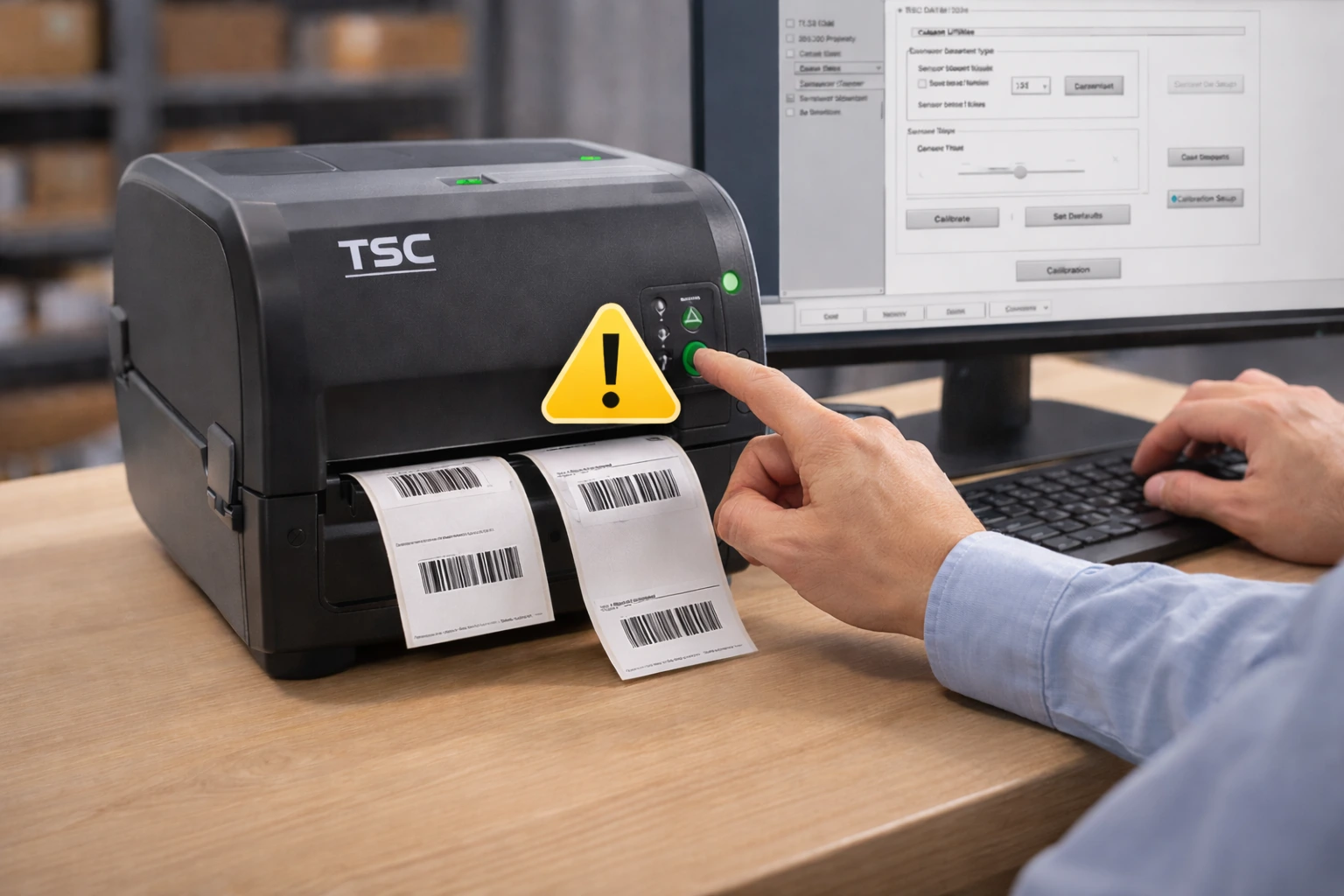
TSC barcode printers are widely used for accurate label printing, but incorrect calibration can cause label alignment problems, skipped labels, or misaligned barcode prints. Proper calibration ensures that the printer detects label size correctly and prints consistently.
This guide explains how to calibrate a TSC barcode printer and fix label alignment issues step by step.
What Is TSC Printer Calibration?
Calibration is the process that allows the printer to detect label size, gap, and positioning. Without proper calibration, the printer may:
- Skip labels
- Print off-center barcodes
- Print multiple labels at once
- Stop printing unexpectedly
When Should You Calibrate a TSC Barcode Printer?
You should calibrate your TSC printer when:
- Changing label size
- Switching label type
- Experiencing alignment issues
- Printer skipping labels
- After cleaning or maintenance
Proper calibration works best when you correctly install a TSC barcode printer and configure label settings accurately.
How to Calibrate a TSC Barcode Printer
Step 1: Turn Off the Printer
Switch off the TSC printer.
Step 2: Press and Hold the Feed Button
Press and hold the feed button while turning the printer back on.
Step 3: Release When LED Flashes
Release the button when the LED indicator flashes.
The printer will automatically detect label size and adjust settings.
Manual Calibration Method
If automatic calibration does not fix the issue:
- Open printer properties on your computer
- Select correct media type
- Verify label size settings
- Adjust sensor position if required
Make sure the correct TSC printer driver is installed before performing calibration to avoid detection or printing errors.
Common Label Alignment Problems and Solutions
Printer Skipping Labels
Cause: Incorrect gap detection
Fix: Perform full calibration
Barcodes Printing Off-Center
Cause: Wrong label size setting
Fix: Update label dimensions in printer settings
Multiple Labels Printing Together
Cause: Media type misconfiguration
Fix: Set correct media type (gap / black mark)
How to Test Calibration
After calibration:
- Print a test label
- Check barcode alignment
- Verify label spacing
If labels print evenly and correctly positioned, calibration is successful.
Tips to Prevent Future Calibration Issues
- Always calibrate after changing labels
- Use high-quality labels
- Keep printer sensors clean
- Store labels properly
FAQs – Frequently Asked Questions
Q1. How do I calibrate a TSC barcode printer?
Ans – Turn off the printer, hold the feed button while turning it on, and release when the LED flashes to start automatic calibration.
Q2. Why is my TSC printer skipping labels?
Ans – Incorrect gap detection or improper calibration usually causes skipped labels.
Q3. How do I fix TSC label alignment issues?
Ans – Perform automatic calibration and verify label size settings.
Q4. When should I recalibrate my TSC printer?
Ans – Recalibrate when changing label size, media type, or experiencing alignment problems.
Q5. Does calibration fix barcode alignment problems?
Ans – Yes, proper calibration helps correct label positioning and printing consistency.
Conclusion
Calibration is essential for accurate and consistent label printing. Most TSC barcode printer alignment issues can be resolved by performing proper calibration and verifying label settings.
SMB Infotech provides professional support, maintenance, and troubleshooting services for TSC barcode printers, ensuring smooth and reliable label printing.