
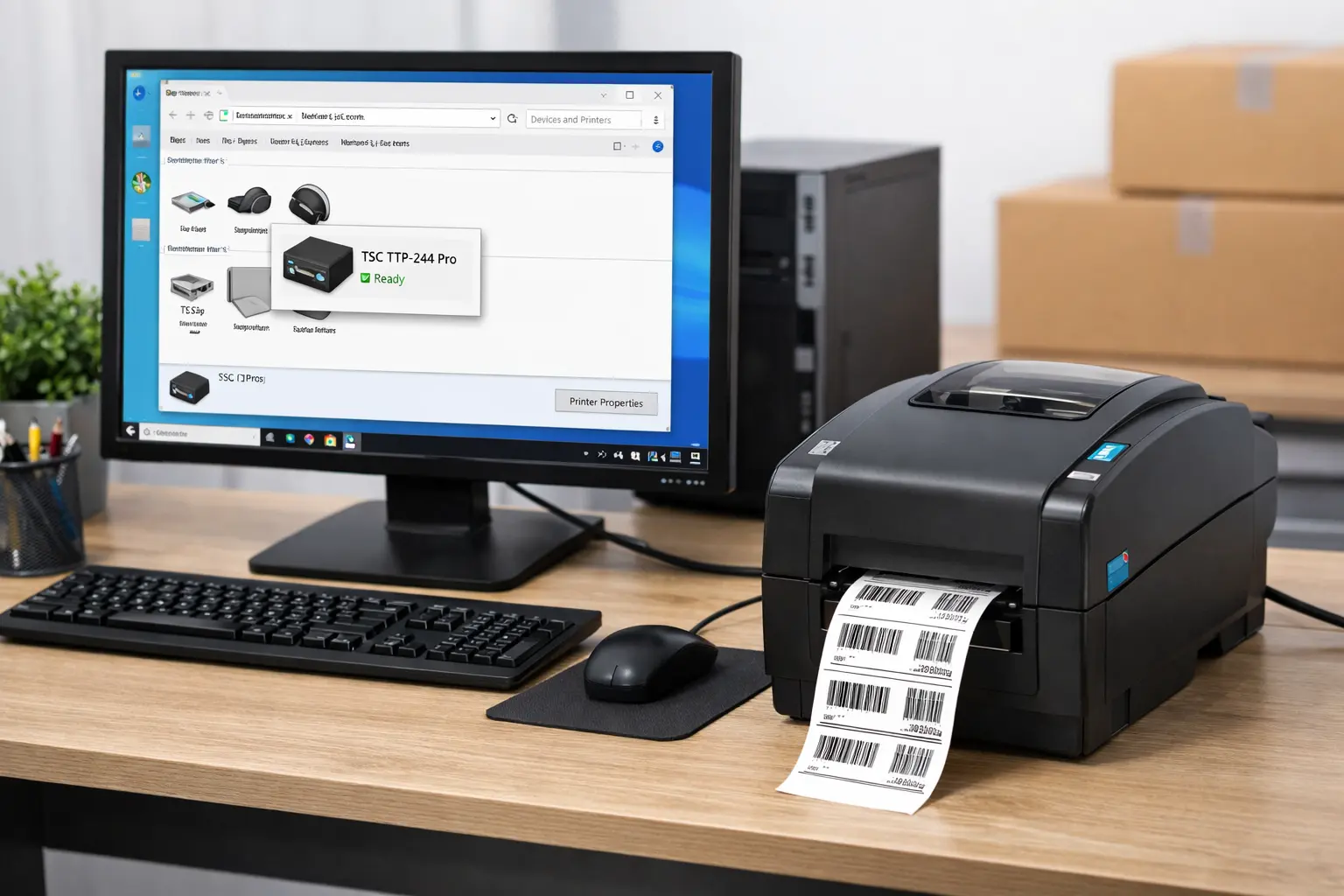
Installing a TSC barcode printer correctly is essential to ensure smooth barcode printing and avoid issues like blank labels, printer offline errors, or misaligned prints. Whether you are setting up a new printer or reinstalling an existing one, following the right installation process saves time and prevents errors.
This guide explains how to install a TSC barcode printer step by step, including driver installation, software setup, and common troubleshooting tips.
What Is a TSC Barcode Printer?
A TSC barcode printer is a thermal or thermal-transfer printer used to print barcode labels, stickers, and tags. These printers are commonly used in retail stores, warehouses, logistics companies, and manufacturing units because of their durability and printing accuracy.
Things You Need Before Installing a TSC Barcode Printer
Before starting the installation, make sure you have the following:
- TSC barcode printer
- Power cable and USB or LAN cable
- Correct label roll and ribbon
- Windows computer (Windows 10 or 11)
- Correct printer driver
Before starting the setup, make sure you have installed the correct TSC printer driver on your system.
Step-by-Step Guide to Install a TSC Barcode Printer
Step 1: Connect the Printer
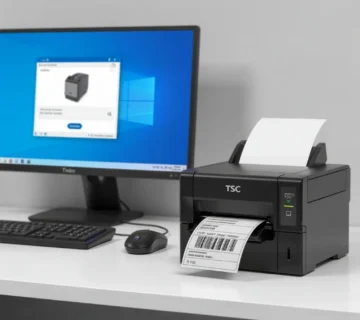
Connect the TSC barcode printer to your computer using a USB or LAN cable and switch on the printer.
Step 2: Install the Printer Driver
Install the correct driver for your printer model. Without the driver, the system will not recognize the printer.
Step 3: Set Printer Preferences
Configure label size, print speed, and print density from printer preferences to match your label type.
Step 4: Install Label Printing Software
Install label design software to create and print barcodes properly.
Step 5: Print a Test Label
Print a test label to confirm that the printer is installed and working correctly.
Common TSC Barcode Printer Installation Problems & Fixes
Printer Not Detected
- Check cable connection
- Try a different USB port
- Restart the printer and computer
Blank Labels Printing
- Check label size settings
- Recalibrate the printer
- Confirm correct ribbon installation
Printer Shows Offline
- Set printer as default
- Check correct port selection
How to Confirm TSC Barcode Printer Installation
You can confirm successful installation by printing a test label from printer settings. If the label prints clearly, your TSC barcode printer is installed correctly.
FAQs – Installing a TSC Barcode Printer
Q1. How do I install a TSC barcode printer?
Ans – Connect the printer, install the correct driver, configure settings, and print a test label.
Q2. Do I need software to use a TSC barcode printer?
Ans – Yes, label printing software is required to design and print barcode labels.
Q3. Why is my TSC barcode printer not printing after installation?
Ans – This usually happens due to incorrect driver installation, wrong label size, or calibration issues.
Q4. Can I install a TSC barcode printer on Windows 11?
Ans – Yes, TSC barcode printers support Windows 10 and Windows 11.
Q5. How do I test if my TSC barcode printer is installed correctly?
Ans – Print a test label from printer properties to verify proper installation.
Conclusion
Correct installation of a TSC barcode printer ensures reliable barcode printing and long-term performance. Following the right steps helps avoid errors and improves daily operations.
SMB Infotech provides complete sales, installation, and technical support for every TSC barcode printer

No comment