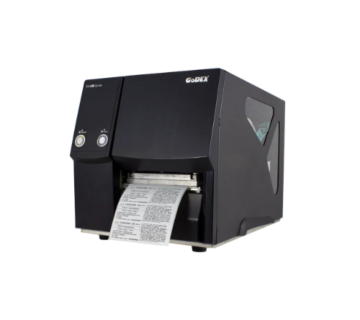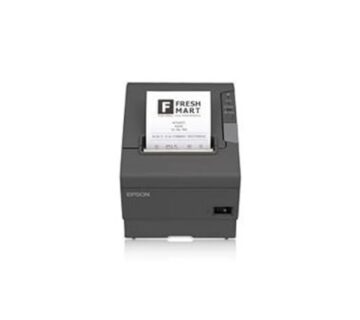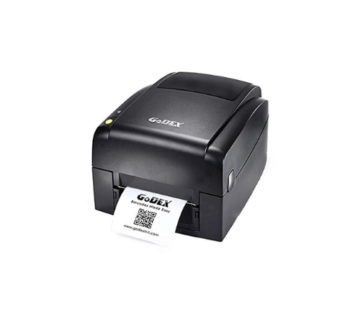
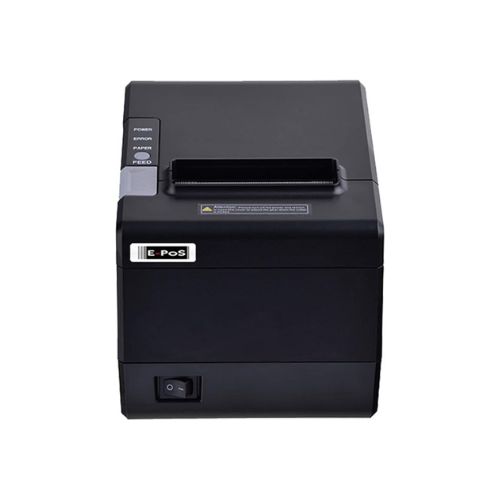
“Not printing” covers four different problems, and they don’t share a fix. The printer might do nothing at all when you send a job. It might feed labels out blank. It might print half a label and stop, or print the text and leave the barcode off. Each one points somewhere different, so the fastest route is to work out which one you have before you touch a single setting.
This guide takes them in that order. Most of it applies to any Zebra desktop label printer, from older GK420 units to the current ZD421 and ZD621, with model notes where they matter.
Start with one test: the configuration report
Print a configuration report straight from the printer, using the button combination in your model’s user guide. Your computer plays no part in this, which is exactly why it’s useful.
- If the report prints cleanly, the printer is fine. The problem sits between the computer and the printer: the driver, the port, the queue or the network.
- If the report comes out blank, faded or not at all, the problem is inside the printer: the media settings, the ribbon, calibration or the hardware.
Keep the report on the desk. It shows the printer’s IP address, its print method (direct thermal or thermal transfer) and its resolution, and you’ll need all three below.
Nothing happens when you send a job
Check the status light
A steady green light means the printer is ready. Red or flashing usually means the printhead is open or the labels or ribbon have run out, and the printer will ignore every job until that’s cleared. Close the head firmly on both sides. A head that looks shut but has only latched on one side is one of the most common reasons a Zebra printer sits there doing nothing.
Look at the print queue
Open the queue in Windows. If jobs are piling up, make sure “Pause printing” and “Use printer offline” are both unticked, clear the stuck jobs, then restart the Print Spooler service. Type services.msc into the Start menu, find Print Spooler, right-click it and choose Restart.
Make sure you’re printing to the right printer
This one catches a lot of people. Plug a USB printer into a different socket and Windows can quietly set it up a second time, so you end up with “ZDesigner ZD421” and “ZDesigner ZD421 (Copy 1)”. Your label software keeps sending jobs to the old one, which is now connected to nothing. Delete the copy you don’t use and point your software at the one that works.
Check the printer language
Zebra printers use a command language called ZPL, and some also understand an older one called EPL. If the driver sends one and the printer expects the other, you get nothing, or a label full of odd characters. The configuration report shows which language is active. Installing the ZDesigner driver for your exact model usually sorts it out.
Zebra printer connected to Wi-Fi but not printing
This is common with wireless and network printers, and it’s rarely the printer’s fault. The printer is on the network and perfectly happy. Your computer just can’t reach it.
The IP address has changed
Most office routers hand out addresses automatically. After a power cut or a router restart, the printer can come back with a new address while Windows keeps sending jobs to the old one. Compare the IP address on the configuration report with the one in Windows (Printer properties, then Ports, then Configure Port). If they’re different, update the port. Then ask whoever looks after your network to reserve a fixed address for the printer so it can’t happen again.
The printer and computer are on different networks
Guest Wi-Fi, and routers with “client isolation” or “AP isolation” turned on, stop wireless devices from talking to each other. The printer shows as connected, yet nothing ever arrives. Put the printer on the same network as the computers that print to it.
Test the connection yourself
Open Command Prompt and type ping followed by the printer’s IP address. Replies mean the network path is fine, so look at the queue or driver instead. “Request timed out” means you have a network problem, not a printer problem.
Use the right port
For network printing, set up a Standard TCP/IP port using RAW on port 9100. Windows sometimes creates a WSD port on its own, and WSD ports are a well known cause of jobs that disappear. If there’s a firewall between the computer and the printer, it has to allow port 9100. If Windows also shows the printer status as “not available”, our guide to that error covers the SNMP setting behind it.
Labels come out blank
Zebra label printers don’t use ink or toner. They print with heat, either directly onto heat-sensitive labels (direct thermal) or through a ribbon onto plain labels (thermal transfer). Blank labels almost always mean that combination has gone wrong somewhere.
The labels don’t match the print method
Plain thermal transfer labels don’t react to heat on their own. If you load them without a ribbon on a printer set to direct thermal, the head heats the label and nothing appears. Either fit a ribbon and switch the printer to thermal transfer, or use direct thermal labels. (Going the other way, thermal transfer mode with no ribbon fitted, most Zebra models stop and show a ribbon error rather than printing blank.)
The ribbon is in backwards
A ribbon only has ink on one side, and that side has to face the label. Loaded the wrong way round, it runs through the printer and leaves no mark. Here’s a quick test: press the sticky side of a spare label onto the outside of the ribbon roll and peel it away. If ink comes off onto the label, that’s the ink side.
Direct thermal labels are upside down
Direct thermal labels have a heat-sensitive coating on one side only. Drag a fingernail quickly across the label. The coated side leaves a dark mark, and that side has to face up towards the printhead.
Darkness is set too low
If you’re getting a faint image rather than nothing, raise the darkness a step or two in the driver and test again. Don’t jump straight to maximum. High darkness wears the printhead faster.
It prints part of the label, or skips labels
The label size is wrong in the driver
If the driver thinks your labels are 100 x 150 mm and you’ve loaded 100 x 50 mm, the printer spreads one design across several labels or cuts it off. Set the exact label size in the driver’s Printing Preferences and in your label software, and make sure the two agree.
The printer has lost its calibration
Calibration is how the printer learns where each label starts and ends. It drifts after a change of labels, and the signs are skipped labels, blank labels between prints, or a design that creeps further down each label. On current ZD-series models such as the ZD421 and ZD621, load the labels, close the cover, and hold PAUSE and CANCEL together for two seconds. The printer feeds and measures a few labels, then goes back to ready. Older single-button models use a FEED button sequence instead, which you’ll find in the model’s guide.
The media sensor is in the wrong spot
On ZD-series printers the media sensor slides from side to side. If it isn’t lined up correctly for your labels, calibration fails however many times you run it. Check the sensor position first, then calibrate.
The label was designed for a different resolution
Zebra printers come in 203 dpi and 300 dpi versions, and label layouts are measured in printer dots. A design made for a 300 dpi printer comes out about one and a half times larger on a 203 dpi printer, and runs straight off the edge. If you’ve moved a label format from one printer to another, compare the resolution on both configuration reports.
The text prints but the barcode doesn’t
- The barcode is wider than the printable area. Anything that runs past the edge gets clipped, and a clipped barcode may not print at all. Make it smaller or reduce the bar width.
- The barcode is coming from Word or Excel as a font. Sent through a Windows driver it’s turned into an image, and at 203 dpi the narrow bars can blur together. Printing barcodes with the printer’s own barcode commands, which is what ZebraDesigner and most label software does, gives much cleaner bars.
- A thin white line runs through every label in the same place. That’s a dead spot on the printhead, and it can cut a barcode in two so no scanner will read it. Cleaning sometimes helps. If it doesn’t, the printhead needs replacing.
- The bars are smudged into each other. Drop the print speed by one step and lower the darkness slightly.
Quick reference
| What you see | Most likely cause | Try this first |
| Nothing prints, light is red | Head open, labels or ribbon out | Reload and close the head on both sides |
| Nothing prints, light is green | Wrong queue, port or driver | Clear the queue, delete duplicate printers, restart the spooler |
| On Wi-Fi but nothing prints | IP address changed, or devices isolated | Compare the config report IP with the Windows port |
| Blank labels | Wrong print method, ribbon backwards or labels upside down | Check the print method, then the ribbon and fingernail tests |
| Half a label, or skipped labels | Wrong label size or lost calibration | Set the size, then run SmartCal (PAUSE + CANCEL) |
| Barcode missing or won’t scan | Barcode too wide, font-based, or a dead printhead dot | Resize it and print with the printer’s barcode commands |
When it’s the printer itself
If the printer can’t produce a clean configuration report with fresh labels loaded, the hardware needs attention. The usual culprits are a worn printhead (faded patches or white streaks even with good settings), a worn platen roller (the rubber roller under the head, which hardens over time and lets labels slip), or a failed sensor. Printheads and platen rollers wear out with use the way tyres do, and replacing them is routine work.
Need help with a Zebra printer in Dubai?
SMB Infotech supplies and services Zebra barcode printers in Dubai and across the UAE, along with labels and ribbons made to suit them. If your printer still won’t print after working through this, send us the model number, a photo of the status light and a photo of the configuration report. Most of the time that’s enough for us to tell you what’s wrong before anyone has to travel.
Frequently asked questions
Why is my Zebra printer printing blank labels?
Usually the labels don’t match the print method, the ribbon’s ink side is facing away from the label, or direct thermal labels have gone in upside down. Check the print method first, then run the ribbon and fingernail tests.
Why won’t my Zebra printer print over Wi-Fi when it says it’s connected?
Most often the printer’s IP address has changed and Windows is still sending jobs to the old one. Print a configuration report, compare the IP address with the printer’s port in Windows, and update it.
How do I calibrate a Zebra ZD421?
Load the labels and close the cover. With the printer on and ready, hold PAUSE and CANCEL together for two seconds. It feeds and measures a few labels, then returns to ready.
Why does my Zebra printer only print half the label?
The label size in the driver doesn’t match the labels loaded, the printer needs calibrating, or the design was made for a different resolution. Check them in that order.
Do Zebra label printers use ink?
No. They print with heat, either straight onto heat-sensitive labels or through a ribbon. That’s why the ribbon and the labels you choose make such a difference to print quality.