
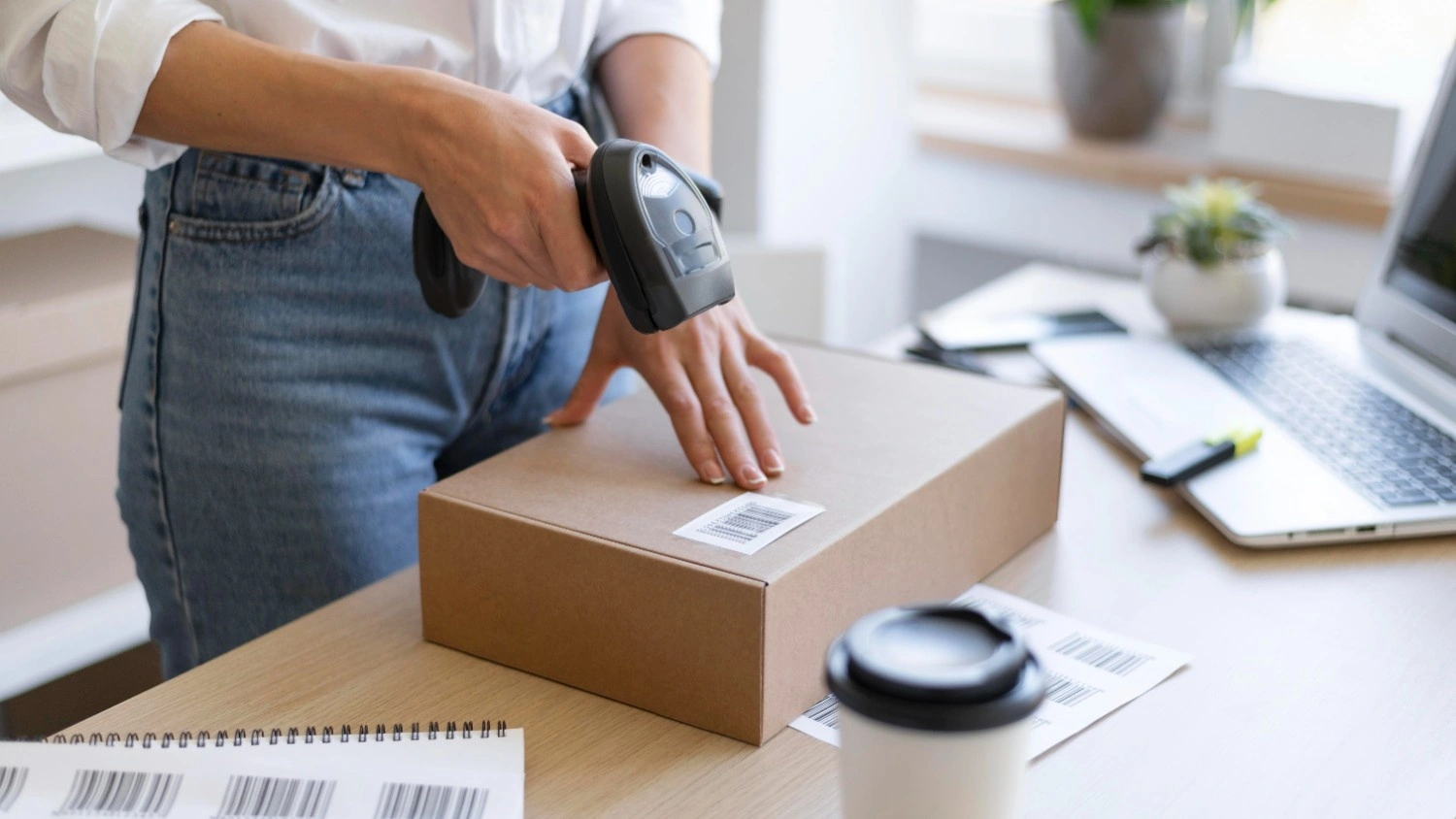
Printing barcode labels using a barcode printer is the most reliable and efficient way for businesses to manage products, inventory, and logistics. Unlike office printers, barcode printers are designed to produce clear, durable, and scannable labels at scale.
This guide explains how to print barcode labels using barcode printers, covering printer setup, software, label and ribbon selection, and best practices for brands like Zebra, Honeywell, and other commonly used barcode printers.
What Is a Barcode Printer and How Does It Print Labels?
A barcode printer is a specialized device used to print barcode labels using thermal or thermal-transfer technology. Instead of ink or toner, barcode printers use heat and ribbons to produce sharp and durable barcodes.
Barcode printers are preferred by businesses because they:
- Produce consistent print quality
- Support high-volume label printing
- Work with multiple label sizes and materials
- Ensure accurate barcode scanning
They are widely used in retail, warehouses, logistics, healthcare, and manufacturing.
What You Need Before Printing Barcode Labels
Before printing barcode labels, make sure the following components are in place.
Barcode Printer
Choose a printer suitable for your workload. Desktop printers work well for retail and office use, while industrial printers are designed for continuous, high-volume printing. Popular brands include Zebra, Honeywell, TSC, Citizen, and Godex.
Barcode Printing Software
Barcode labels can be printed using:
- Label design software
- POS or ERP systems
- Inventory management applications
- E-commerce tools such as Amazon label systems
The software generates the barcode and sends print commands to the printer.
Barcode Labels and Ribbons
Correct label material and ribbon type are essential. Paper labels typically use wax ribbons, while synthetic labels require resin or wax-resin ribbons for durability.
How to Print Barcode Labels Using a Barcode Printer
If you’re new to label creation, this step-by-step guide explains how to print barcode labels correctly for business use.
Step 1: Install Printer Drivers
Install the official driver provided by the printer manufacturer. This ensures proper communication between the printer and your computer or system.
Step 2: Load Labels and Ribbon Correctly
Load the label roll and ribbon according to the printer model. Incorrect loading can cause ribbon wrinkles, misalignment, or print errors.
Step 3: Configure Label Size and Print Settings
Set label width, height, print speed, and darkness. These settings affect barcode clarity and scan accuracy.
Step 4: Generate the Barcode in Software
Create the barcode using your software by entering product data such as SKU, item code, or serial number. Select the appropriate barcode type.
Step 5: Print and Test Scan
Always print a test label and scan it using a barcode scanner to confirm readability before starting bulk printing.
How to Print Barcode Labels Using Zebra Printers
Zebra barcode printers are widely used due to their reliability and ease of integration. The Setup Utilities and label design software allow quick configuration of printer settings, label calibration, and print testing.
Zebra printers support both direct thermal and thermal-transfer printing, making them suitable for short-term and long-term labelling needs.
How to Print Barcode Labels Using Honeywell Printers
Honeywell barcode printers are commonly used in industrial and warehouse environments. They support multiple printing applications and integrate well with ERP and warehouse management systems.
Proper calibration and ribbon-label matching are important to achieve consistent print quality on Honeywell printers.
Printing Barcode Labels from Applications
Printing from POS or ERP Systems
Many businesses print barcode labels directly from POS or ERP software. In such cases, the printer must be correctly mapped, and label templates must match printer specifications.
Printing Barcode Labels for Amazon
Amazon sellers often print barcode labels such as FNSKU labels using barcode printers. Correct label size, barcode format, and placement are critical to avoid fulfillment issues.
Common Barcode Printer Setup Mistakes to Avoid
- Using the wrong ribbon type for the label material
- Incorrect label gap or calibration settings
- Printing barcodes too small or too dark
- Skipping test scans before bulk printing
Avoiding these mistakes helps reduce reprints and scanning failures.
When to Use Professional Barcode Printing Services
Businesses with high-volume or complex labeling requirements often benefit from professional support. Professional barcode printing services in Dubai help ensure:
- Correct printer configuration
- Suitable labels and ribbons
- Accurate barcode formatting
- Smooth system integration
Professional services save time and reduce costly printing errors, especially for growing businesses.
FAQs – Frequently Asked Questions
Q1. How do I print barcode labels using a barcode printer?
Ans – Install the printer driver, load labels and ribbon correctly, configure label settings, generate the barcode using software, and always test scan before bulk printing.
Q2. Which barcode printer is best for label printing?
Ans – The best barcode printer depends on usage. Desktop printers suit retail, while industrial printers are ideal for warehouses and manufacturing.
Q3. Do I need special software to print barcode labels?
Ans – Yes, barcode printing requires label design software, POS systems, or ERP applications that generate barcode data for printing.
Q4. Why are my barcode labels not scanning properly?
Ans – Scanning issues usually occur due to incorrect label size, low print contrast, wrong ribbon type, or improper printer calibration.
Final Thoughts
Learning how to print barcode labels using barcode printers helps businesses achieve reliable labeling, accurate scanning, and efficient operations. With the right printer, software, and consumables, barcode printing becomes a smooth and scalable process for any business environment.
)